A request arrives, someone copies it into a tracker, then writes a notification. This example connects those steps: capture once, create a shared record and notify its owner.
What was actually built
Microsoft Forms: two required fields for a fictional organisation and request description.
SharePoint: a private demonstration list stores the response number, organisation and request.
Power Automate: an automated flow retrieves the response and creates the list item.
Office 365 Outlook: the flow sends an internal notification with the organisation and a link to the private list.
The form is restricted to the NealOps owner. Clients can watch the private system during a demonstration call; they do not need access to the NealOps tenant.
FOLLOW THE ACTUAL SYSTEM / FOUR STAGES
What to look for at each step.
This is a read-only walkthrough of the tested private Microsoft system. On a demonstration call, these are the four views to follow; the public page does not submit forms or send emails.
01 / Input - Microsoft Forms captures the request
The form has two required fields: fictional organisation and request description. The tested examples were Harbour Field Services with a maintenance enquiry, then Example Training with a training enquiry.
Check: the organisation and request are captured once. The form is restricted to the NealOps owner.
02 / Record - SharePoint stores matching fields
The flow creates a separate list item with the response number, organisation and request. The two checked items were DEMO enquiry - 1 and DEMO enquiry - 2.
Check: each new item contains the matching submitted values; the second submission creates a second item.
03 / Automation - Power Automate completes the route
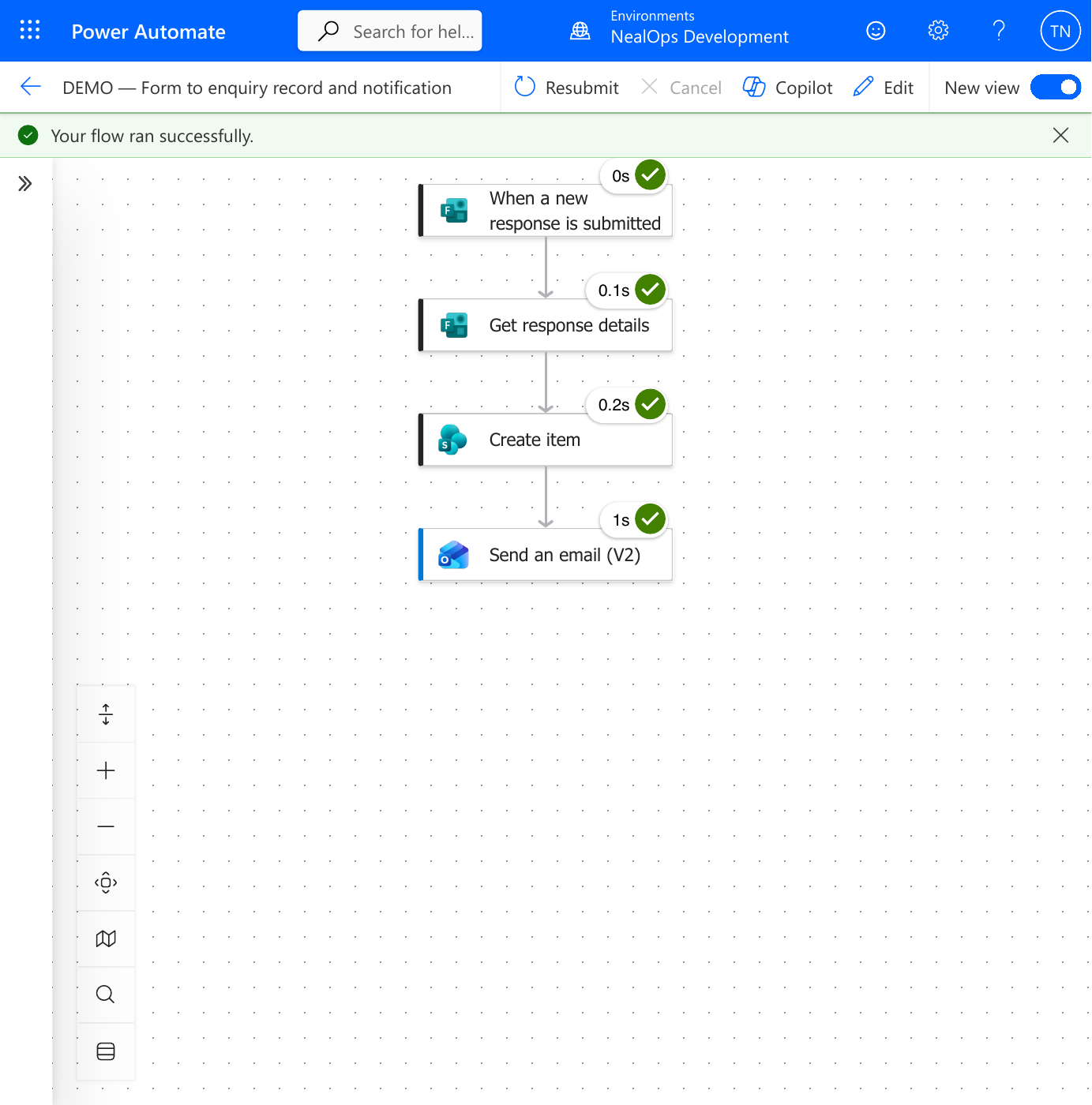
The actual run below shows the Forms trigger, response retrieval, SharePoint item creation and Outlook email action. Both tested submissions completed successfully.
Check: the successful run corresponds to the submitted example. Open the actual run capture below to inspect its four actions.
Two internal notifications were received and checked in Outlook. Each contained the matching fictional organisation and a link to the private list. Both went only to the NealOps owner.
Check: the notification and stored record refer to the same submission. A submitter receipt was not part of these two tested runs.
ACTUAL MICROSOFT INTERFACE
Four steps, completed in Power Automate.
This image is an unaltered rendering of the actual Microsoft run page, exported after the second fictional submission. The green indicators show the trigger, response retrieval, SharePoint item creation and Outlook email action completing successfully.
NealOps demonstration environment · 1 October 2026 · Fictional data. Open the image to see the full exported page.
Checked against the stored records and email
TEST 01
Harbour Field Services
Fictional maintenance enquiry → record “DEMO enquiry — 1” → successful flow → owner notification containing the matching organisation.
TEST 02
Example Training
Fictional training enquiry → record “DEMO enquiry — 2” → successful flow → owner notification containing the matching organisation.
What this evidence demonstrates
This is NealOps’ own demonstration build, using Microsoft’s real services and standard connectors. It proves this particular intake, record creation and internal notification path. It is not previous client work, a certification or a claim of measured client time savings.
The developer environment is for development and testing. A client implementation would use the client’s authorised, appropriately licensed environment. Submitter receipts, approval chains, reminders, external forms and wider tracking features require their own agreed configuration and tests.
Start with one repeatable task
The £650 capture-and-notify guide scope is a possible starting point. A written quote confirms the form, fields, notifications, users, licences, acceptance checks and handover.