Demos / Real Microsoft build
NEALOPS OPERATIONS STUDIO
Request approvals,
from start to finish.
A simple way to submit a request, see who needs to review it and follow the outcome.
Private native Microsoft app · Fictional demonstration data
THE REQUEST JOURNEY
One request. Five clear steps.
Submit the request
Capture the requester, reason, amount and supplier choice. Save the details together in SharePoint.
See the review route
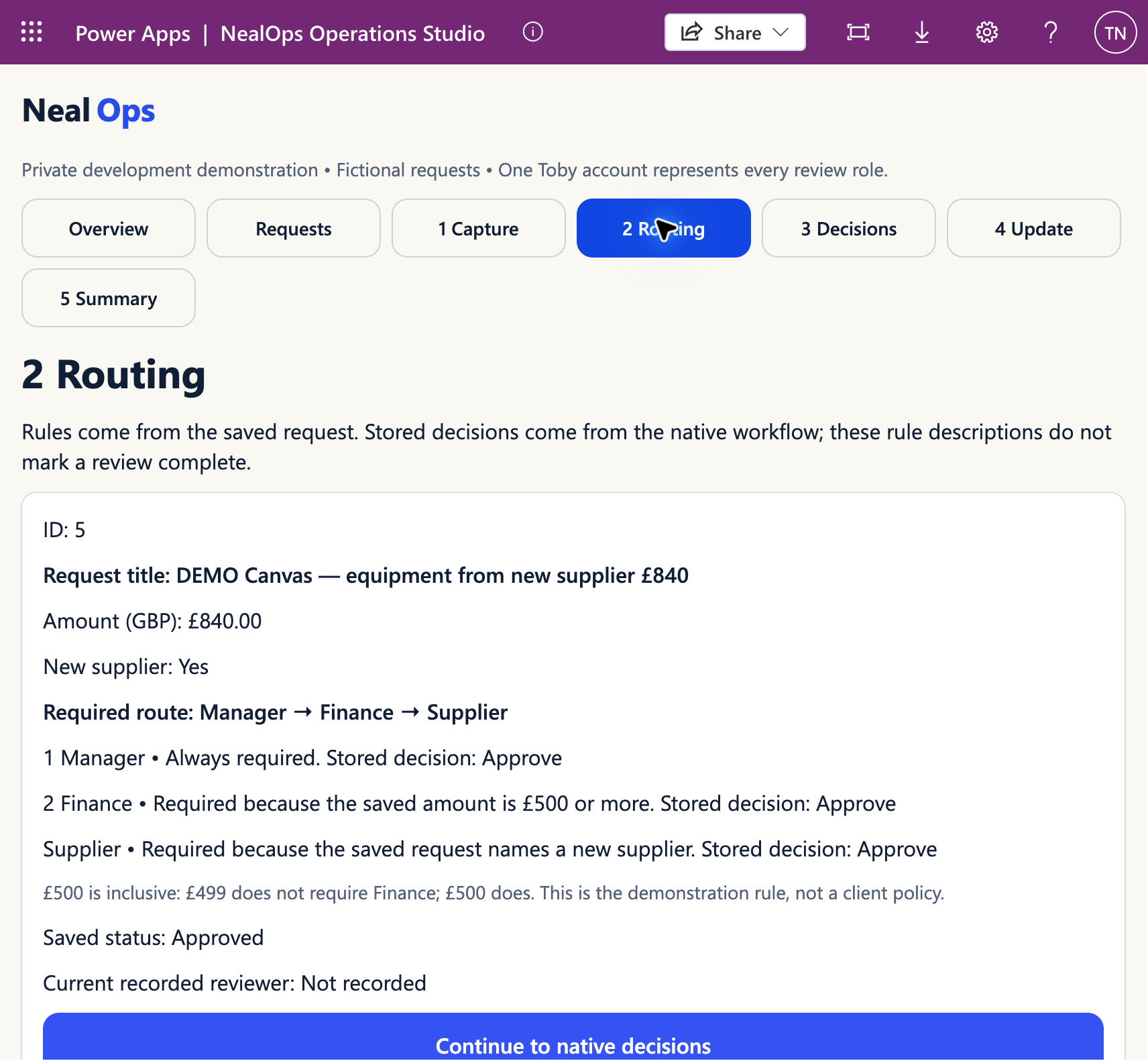
Manager review is always required. Finance joins at £500 or more; a new supplier adds Supplier review.
Record the decision
Respond in native Microsoft Approvals. Keep the actual decision, reviewer, comment and time with the request.
Send the update
The workflow sends the owner an Outlook notification after the final decision. The saved result and received email can be checked separately.
Review the result
Reopen the same saved request to inspect its original details, review history and notification state.
CHECKED DEMONSTRATION
Four fictional journeys inspected.
Each complete saved summary retained the original request details and had a matching received email inspected in Outlook.
What was checked?
Manual observations on 2 and 5 October 2026 followed four requests created through native Power Apps capture screens. The £250, £500 and £840 requests ended Approved; a separate £840 request ended Declined after Manager Reject, with Finance and Supplier recorded Not reached. All four summaries and matching received messages were read.
The full three-stage run and rejection run were also inspected as successful. The rejection run explicitly skipped Finance and Supplier approval creation and waiting actions. Sent means the send action was accepted; inbox receipt was checked independently.
Toby's one account represents every review role. This demonstrates real Microsoft service actions, with fictional role allocation; independent reviewer permissions and production readiness are not demonstrated. No measured client savings are claimed.
How it works in Microsoft 365
- Power Apps
- A focused interface with Overview, Requests and five numbered request stages.
- SharePoint
- The original request, current status and saved review evidence.
- Power Automate + Approvals
- Conditional review steps, native responses and recorded outcomes.
- Outlook
- The owner's result notification, checked separately from its stored send state.
The app is operated privately during a live walkthrough. This public page does not open the internal app or submit a request.
A BUILD FOR YOUR BUSINESS
Your process sets the scope.
Review rules, roles, data, access and licensing are agreed before a client build. A written proposal confirms acceptance checks and handover.
The seven-screen Operations Studio showcase is beyond the £1,750 starter tracker, which covers one process, one list, up to three app screens, up to two supporting flows and up to ten internal pilot users. A client system with this breadth receives a separate quote.
Complex permissions, premium integrations, external portals and wider rollouts are separately scoped. The £650 form-to-list offer covers intake and notification; approvals and apps are separate. No VAT charged. Licences and third-party fees are separate.
See guide prices →Want to try a fictional example yourself? Start the browser walkthrough →